How to Get the Exact Hex Color from Any Image
How pixels store colour, why an eyedropper beats guessing, and how to pull an exact hex code from any photo or screenshot.
By Mubasher Hussain · Published 2026-07-28 · Updated 2026-09-01 · 1071 words · about 5 minute read
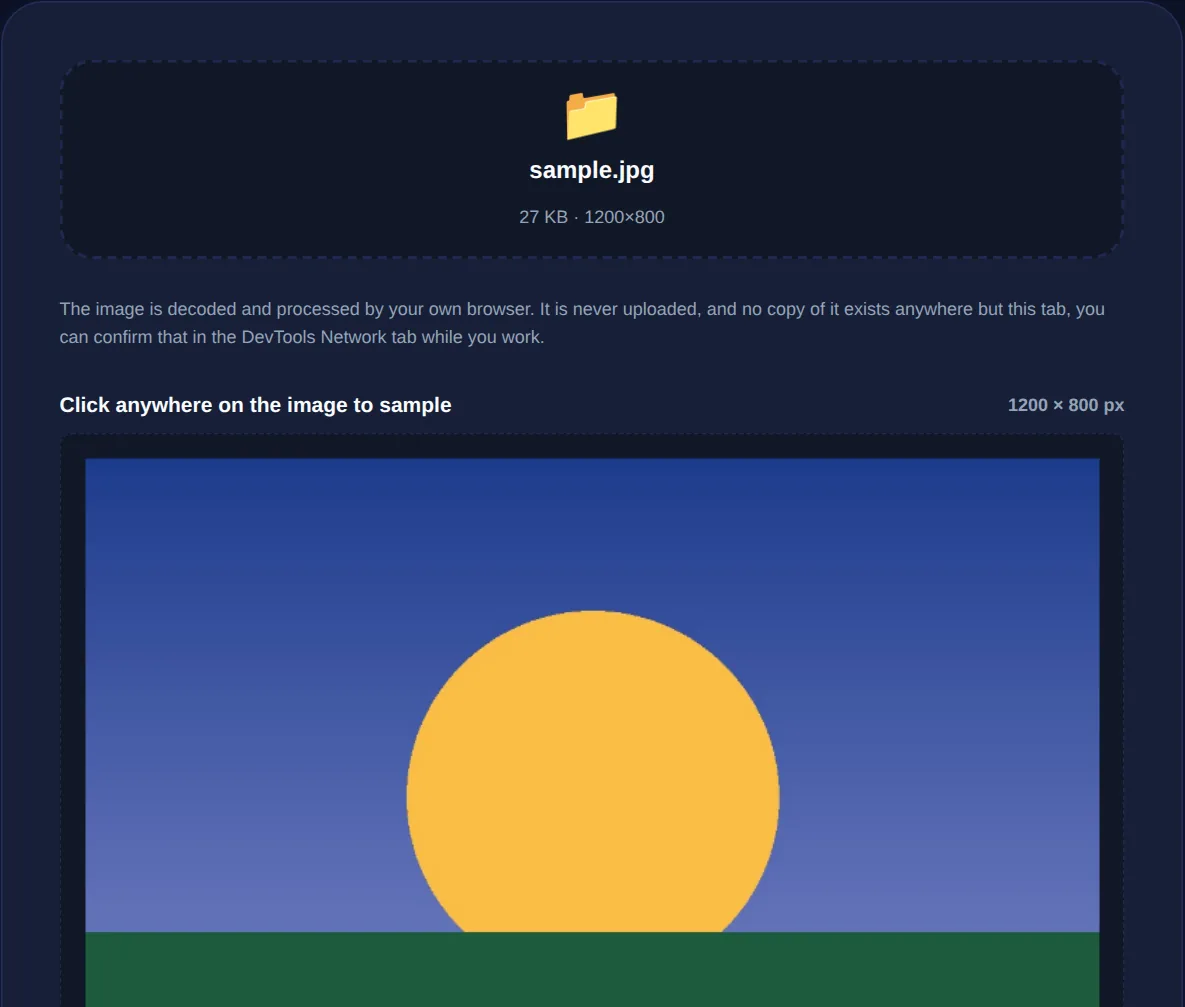
You have an image, a logo, a photo, a screenshot of a design you like, and you need the exact colour of one part of it as a hex code you can use elsewhere. Guessing by eye is hopeless, because the eye is easily fooled by surrounding colours. An eyedropper tool reads the actual pixel value and gives you the precise hex code. The Color Picker from Image does this in your browser, letting you click any point in an image to get its colour.
This article explains how images store colour, why sampling the real pixel beats estimating, and how to get an accurate, usable colour value from any image for design, branding or matching.
How images store colour
Every pixel in a typical image holds three numbers: how much red, green and blue it contains, each from 0 to 255. Those three values combine to make the colour you see. A hex code is just that same trio written in base 16, #FF8800 means red 255, green 136, blue 0. So when you pick a colour from an image, the tool is reading the exact red, green and blue stored at the pixel you clicked and translating it into the hex code that represents it. There is no guesswork; the value is precise.
Why an eyedropper beats guessing
Human colour perception is relative, not absolute. The same grey looks lighter against a dark background and darker against a light one; a colour surrounded by its complement appears more saturated than it really is. These illusions make eyeballing a colour genuinely unreliable, two designers looking at the same swatch will name different hex codes, and both will be wrong. An eyedropper sidesteps perception entirely by reading the stored pixel value, giving everyone the same correct answer.
Photos and compressed images contain colour variation and JPEG artefacts, so a single pixel can be slightly off from the colour you perceive. For a representative value, sample a few nearby pixels, or pick from a flat, evenly-lit area rather than an edge or a highlight.
Getting an accurate sample
A few habits make your sampled colour trustworthy. Zoom in so you can click precisely on the area you mean. Avoid edges, shadows and specular highlights, which carry colours that are not really "the" colour of the object. On a photograph, sample a mid-tone rather than the brightest or darkest point. And be aware that lossy compression shifts colours slightly, so a hex code pulled from a heavily compressed JPG is close but not laboratory-exact, usually fine for design, but worth knowing if you need a perfect brand match.
What to do with the colour once you have it
An exact hex code is the starting point for several jobs:
- Matching a brand colour across a website, document or design.
- Building a palette around a colour you found in a photo or piece of art.
- Recreating a colour from a screenshot when you do not have the original design file.
- Checking that a text colour will be readable on a background you sampled.
From a single sampled colour you can generate a whole coordinated scheme with a color palette generator, refine or convert it with a color picker, and verify it is legible against its background with a contrast checker.
Click any point in an image to read its exact hex, RGB and HSL colour, entirely in your browser. Your image is never uploaded.
Privacy and the local advantage
Sampling colour from an image in the browser means the image is loaded onto a canvas on your own device and read pixel by pixel there, nothing is sent anywhere. That is convenient for speed, but it also matters when the image is a confidential mockup, an unreleased product shot or a client's brand asset you are not free to upload to a random website. You get the exact colour you need while the image stays entirely private.
RGB, hex and other ways to write the same colour
A colour picked from an image can be expressed in several notations, and knowing them helps you use the value wherever you need it. Hex, like #3B82F6, is the most common in web design and is simply the red, green and blue values written in base 16. The same colour in RGB notation is rgb(59, 130, 246): the identical three numbers in plain decimal. HSL notation describes the colour by hue, saturation and lightness instead, which is less intuitive to read but much easier to adjust: nudging the lightness value up or down gives you a lighter or darker version of the same hue without guesswork.
A good picker shows all three so you can copy whichever your context expects, hex for CSS and design tools, RGB for many editors, HSL when you want to build variations. They are interchangeable representations of the same underlying pixel, so nothing is lost converting between them. Being comfortable with all three also demystifies colour: once you see that a hex code is just three numbers, matching, lightening and building palettes around a sampled colour stops feeling like magic and becomes simple arithmetic you can reason about.
Finally, remember that a colour never exists in isolation. The same hex value can look warm or cool, bright or muted, depending on what surrounds it, which is why a colour sampled from one image can feel different when placed in your own design. Sampling gives you an accurate starting point, but always judge the colour in its final context, next to the other colours it will actually sit beside, and adjust if needed. The picker gives you the truth about the pixel; your eye, in context, decides whether it is the right colour for the job.
In short, colours in images are stored as precise red-green-blue values, and an eyedropper reads them directly rather than relying on the unreliable human eye. Sample from a flat, well-lit area, take a couple of readings on a photo, and you will get an accurate hex code you can carry confidently into any design, pulled from any image, without it ever leaving your device.