Uppercase, lowercase, Title Case: Convert Text Case Without Retyping
The difference between the common text cases, when each is correct, and how to switch between them in one click instead of retyping.
By Mubasher Hussain · Published 2026-08-01 · Updated 2026-09-01 · 1071 words · about 5 minute read
You have typed a heading in all capitals, or pasted a sentence that arrived entirely in lowercase, and now you need it in the correct case. Retyping is the slow way. Converting case online is the fast way: paste the text, pick the case you want, and copy the result. The Case Converter does exactly this, and because it runs in your browser your text is never uploaded.
But "the correct case" depends on context, and the labels, sentence case, title case, capitalize each word, are easy to mix up. This article explains what each case means, when it is appropriate, and the small traps that make title case harder than it looks.
The five cases you will actually use
Almost every text-case need falls into one of five options, and knowing the exact behaviour of each saves a lot of manual fixing:
- UPPERCASE: every letter capitalised. Good for short labels and acronyms; hard to read in long runs.
- lowercase: every letter lowered. Useful for tidying shouty text or preparing slugs and tags.
- Sentence case: only the first letter of each sentence is capitalised, like normal prose.
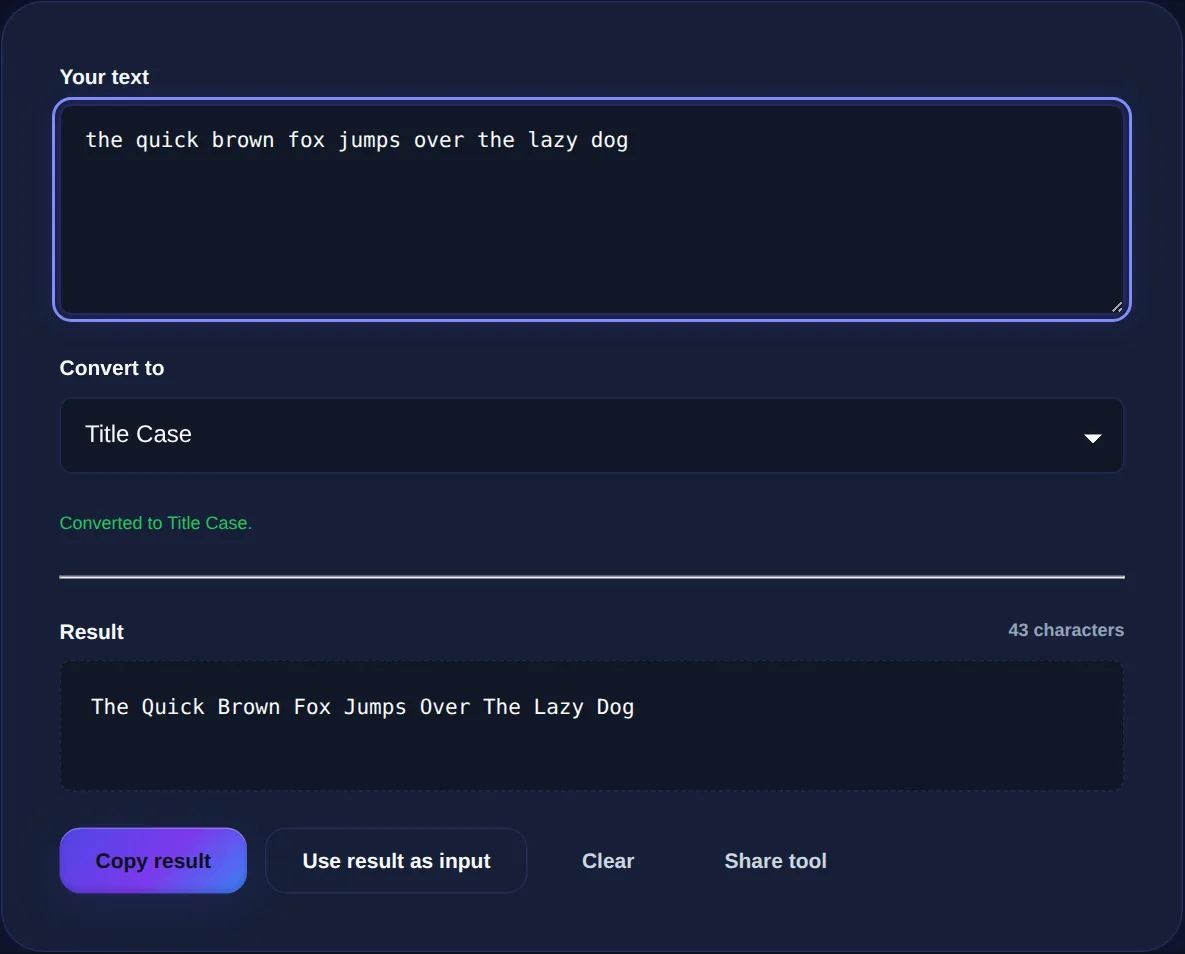
- Title Case: the first letter of each significant word is capitalised, used for headlines.
- Capitalize Each Word: like title case but it capitalises every word, including small ones.
The distinction between the last two is where most people slip up, so it is worth a section of its own.
Why title case is trickier than it looks
Title case does not simply capitalise the first letter of every word. In the most common style guides, small "function" words, articles, short prepositions and conjunctions such as a, an, the, of, in, on, and, but, stay lowercase unless they are the first or last word of the title. So "the lord of the rings" becomes "The Lord of the Rings," not "The Lord Of The Rings."
Different style guides draw the line in slightly different places (AP, Chicago and APA each have their own list of words to lowercase and their own length threshold for prepositions). If you are writing for a publication, follow its guide. If you just want something that looks right, a converter that applies the common rules will get you 95% of the way there, and you can fix the occasional edge case by hand.
Use "capitalize each word" for things like proper-noun lists or spreadsheet columns where every word genuinely should be capitalised. Use "title case" for actual headlines, where small words look wrong when capitalised.
When each case is the right choice
Matching the case to the medium makes text read the way people expect:
- Headings and article titles: title case (or sentence case, which many modern publications now prefer).
- Body text: sentence case, always.
- Buttons and short UI labels: sentence case or, for very short labels, uppercase.
- URLs, file names, tags and slugs: lowercase, usually with hyphens.
- Constants in code or spreadsheet keys: UPPERCASE with underscores.
Sentence case for headlines has quietly become the house style at many large tech companies because it reads as friendlier and is easier to get consistently right than title case.
Common conversions and how to do them quickly
A few conversions come up again and again. Turning a block of ALL CAPS into readable text means going to lowercase first, then applying sentence case so the sentence starts capitalise correctly. Cleaning up a pasted heading usually means title case. Preparing a page title for a URL means lowercase, then feeding it through a slug generator to swap spaces for hyphens and strip punctuation.
Switch text between UPPERCASE, lowercase, Sentence case, Title Case and more in one click. Runs entirely in your browser, nothing is uploaded.
Doing it without retyping, or leaking your text
The whole point of a case converter is to save the tedium of retyping, but it should not trade that convenience for privacy. If you are reformatting a confidential email, a draft press release or client copy, you do not want it sitting in a server log somewhere. A browser-based converter processes the text locally, so the words never leave your machine.
Case conversion and international text
Changing case sounds trivial until you work with languages beyond basic English, where it becomes surprisingly subtle. Some letters change size in ways that are not one-to-one: the German ß traditionally uppercases to "SS," and Turkish has both a dotted and a dotless i that must be handled differently from English or the meaning changes. A naive converter that simply shifts letter codes can quietly corrupt these.
For everyday English this never comes up, but it is worth knowing if you handle multilingual content, because it explains why case conversion is a real feature rather than a trivial one. A well-built converter uses the language-aware casing rules built into modern browsers, which handle the common international cases correctly. The practical advice: for English content, any converter is fine; for multilingual content, spot-check the output, especially for names and words with accented or special characters, before you publish.
It is also why you should convert case as a deliberate step rather than trusting autocorrect, which applies its own inconsistent rules as you type and often "fixes" things you did not want changed.
One last habit saves grief: decide the case before you paste text into its final home, not after. Converting case in a plain, neutral tool and then pasting the clean result avoids the tug-of-war with autocorrect and rich-text editors that re-capitalise as you type. It also means you can convert once and reuse the output in several places, a heading, a URL slug, a social caption, each needing a different case from the same source phrase. Treating case as a deliberate transformation step, rather than something you fiddle with letter by letter in the destination, is what turns a fussy chore into a reliable one-click job.
Once your text is in the right case, a quick pass through the Text Formatter can clean up any double spaces or stray line breaks left over from the paste, and the Word Counter will confirm you have not accidentally dropped anything. Together they turn "retype the whole thing" into a ten-second job.