How to Combine Images into a PDF (Without Uploading Them)
Turning a stack of photos or scans into one PDF is simple, but most online tools upload your files first. Here is how it works and how to do it privately.
By Mubasher Hussain · Published 2026-09-12 · Updated 2026-09-01 · 952 words · about 4 minute read
Combining several images into a single PDF is one of those everyday tasks that sounds trivial until you try it: scanned pages of a contract, a set of receipts, screenshots for a report, or photos you want to share as one tidy file. The tricky part is not the conversion, it is that most online converters upload your images to a server first. Here is how it works and how to keep it private. You can do the whole thing on your own device with the free Image to PDF Converter.
What actually happens when images become a PDF
A PDF is a container that can hold text, graphics and images together with layout instructions for each page. When you turn photos into a PDF, each image becomes an embedded object placed on its own page. The converter reads each image, encodes it in a form the PDF format understands, usually JPEG, and then writes a valid PDF file page by page. Open the result in any PDF reader and you get your images as a flip-through document, one per page, in the order you chose.
That is really all a PDF is doing here: wrapping your images in a standard envelope so they travel as a single, universally openable file instead of a loose folder of pictures. The value is in the packaging, because a PDF prints predictably, keeps its page order, and opens the same way on almost any device.
The privacy problem with most tools
Search for an image-to-PDF converter and most results are services that ask you to upload your files. Your images travel to their server, get converted there, and the finished PDF is sent back. For holiday snaps that might not matter, but people very often convert exactly the things they would least want on someone else's computer: scanned IDs, bank statements, signed contracts, medical documents and receipts. Once a file has been uploaded, you are trusting that company's retention and security policies with it.
A converter that runs in your browser builds the PDF using JavaScript on your own device, so your images are never uploaded. You can prove it to yourself: open your browser's developer tools, watch the Network tab, and build a PDF, you will see no request carrying your files.
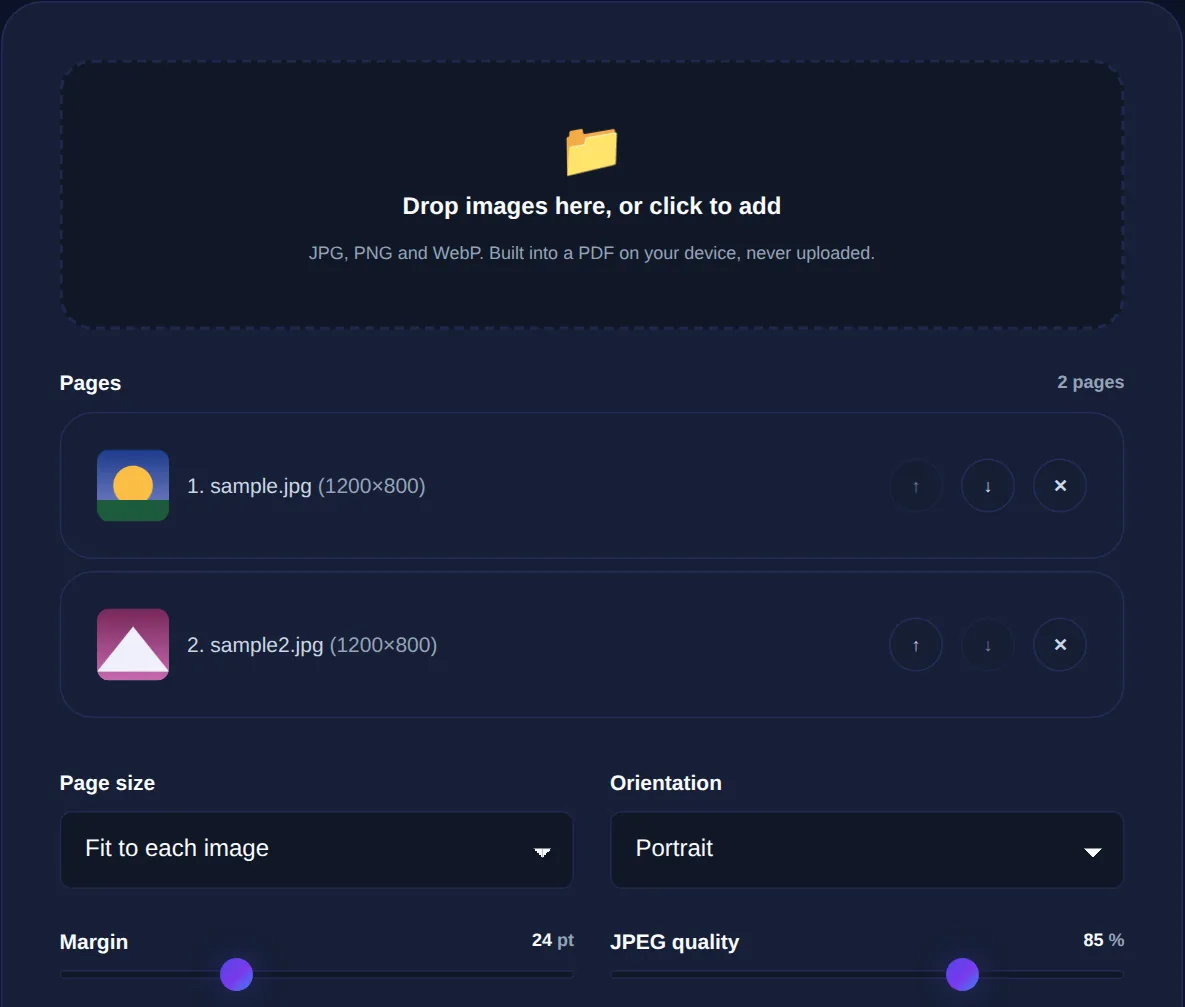
Add JPG, PNG or WebP images, reorder them, choose a page size, and download a single PDF. Everything is built on your device and nothing is uploaded.
Getting the page setup right
The main choice when combining images is the page size, and there are two sensible modes. Fit to each image makes every page exactly the size of the photo it holds, with no borders, which is ideal for a photo gallery or a set of screenshots where you do not want white space around each picture. A fixed size like A4 or Letter, with a margin, places each image centred on a standard document page, which is the right look for scanned paperwork that someone may print. Portrait or landscape orientation lets you match the shape of your images.
Order matters too, since the images become pages in sequence. Being able to reorder them before building, and remove any you added by mistake, saves you from rebuilding the whole file just to move one page. It is worth arranging everything the way you want it before you hit build.
Quality and file size
Images inside a PDF are usually stored as JPEG, and JPEG lets you trade quality against file size. A higher quality setting keeps more detail but produces a larger PDF, while a lower setting shrinks the file at some cost to sharpness. For text-heavy scans you generally want higher quality so the words stay crisp, whereas for photos you are emailing, a moderate setting can cut the size dramatically with little visible difference. If your PDF comes out too large to send, lowering the quality is the first lever to pull.
If your source images are enormous, straight from a modern phone camera, for example, it can also help to resize or compress them before converting, so the pages are not needlessly heavy. That keeps the final PDF a sensible size without hurting how it looks on screen or in print.
A quick workflow
In practice the whole thing takes under a minute: gather your images, drop them into the converter, drag them into the right order and remove any strays, pick fit-to-image for photos or A4 for documents, set a quality level, and build. You get a single PDF downloaded straight to your device, with no account, no watermark and nothing uploaded. For a batch of large photos, compressing or resizing them first keeps the result lean.
Common questions
Can I combine many images into one PDF? Yes, add as many as you like and they become one PDF, one image per page, in the order you set. Which formats work? Any your browser can display, including JPG, PNG and WebP. Will my files be uploaded? No, the PDF is built entirely in your browser, so nothing leaves your device. Is there a watermark? No, the output is clean.
Combining images into a PDF is just wrapping them in a standard envelope, and there is no reason that should cost you your privacy. Do it on your own device with the Image to PDF Converter, and if your images are large, trim them first with the Image Compressor.