Find and Replace Online: Bulk-Edit Text Without Opening an Editor
How find-and-replace works, when to use plain text versus regular expressions, and how to change every occurrence safely.
By Mubasher Hussain · Published 2026-07-27 · Updated 2026-09-01 · 1063 words · about 5 minute read
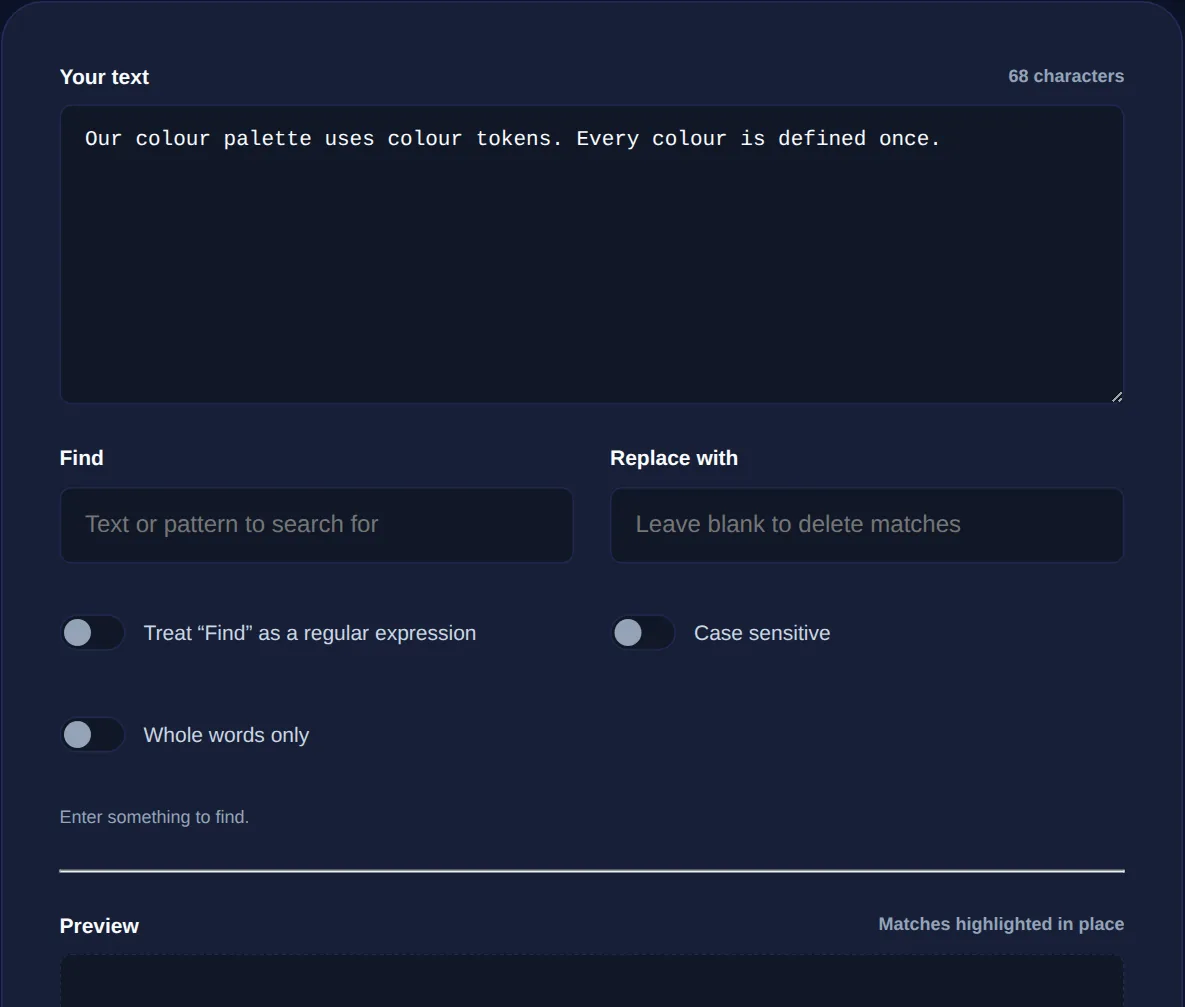
Find and replace is the single most useful text operation most people never think about. Need to change every "2025" to "2026" in a document, swap a product name across a press release, or strip a repeated phrase out of a transcript? Doing it by hand invites mistakes; find-and-replace does it consistently in one action. The Find and Replace tool does this in your browser, so even sensitive text never leaves your device.
This guide covers how find-and-replace works, the crucial difference between plain-text and regular-expression matching, and the habits that keep a bulk replacement from quietly breaking your text.
What find-and-replace actually does
At its core, find-and-replace scans your text for every occurrence of a search term and substitutes each one with replacement text. "Replace all" does this in a single pass across the whole document. That is trivial for a unique word, but most real replacements have edge cases: you want to change "cat" the animal without turning "category" into "dogegory," or replace a name only when it stands alone. Handling those cases well is what separates a careful replacement from a destructive one.
Plain text vs regular expressions
There are two ways to describe what you are looking for. Plain-text matching finds the exact characters you type. Regular-expression (regex) matching lets you describe a pattern: any number, any word boundary, any line starting with a particular character. Regex is far more powerful and correspondingly easier to get wrong.
- Use plain text when the thing you are replacing is a fixed, literal string: a specific name, a date, a URL.
- Use regex when you are matching a shape rather than a specific string: all phone numbers, every trailing space, any word wrapped in brackets.
Two regex features solve the classic "cat/category" problem: word boundaries (so "cat" matches only the standalone word) and case sensitivity toggles (so you can choose whether "Cat" and "cat" are the same). If you are new to patterns, build and test yours in a regex tester first, then bring the working pattern to find-and-replace.
The dangerous button is "replace all." Before you press it, search first and look at how many matches there are and where they sit. A count that is much higher than you expected usually means your search term is matching inside other words.
Bulk replacements that come up constantly
Once you are comfortable with find-and-replace, you will reach for it daily:
- Updating a year, version number or price across a whole document
- Rebranding: swapping an old product or company name for a new one everywhere
- Cleaning scraped text by removing repeated boilerplate lines or characters
- Converting straight quotes to curly quotes, or tabs to commas
- Stripping tracking parameters from a list of URLs
For the cleaning tasks especially, find-and-replace pairs naturally with a text formatter to tidy up spacing afterwards, and with Remove Duplicate Lines when the replacement leaves you with repeated rows.
Regex replacement superpowers
Regex does more than find patterns, it can reuse parts of what it matched. Capture groups let you grab a piece of the match and put it back in the replacement, so you can reformat data rather than just swap it. For example, you can turn dates written "MM/DD/YYYY" into "YYYY-MM-DD," or wrap every matched word in quotes, all in one pass. This is where find-and-replace stops being a simple substitution and becomes a lightweight text-transformation engine.
Replace text in bulk with plain matching or full regular expressions, including capture groups. Runs entirely in your browser, your text is never uploaded.
Replacing safely
A few habits prevent the "I just broke my whole document" moment. Work on a copy, or keep the original in another tab, so you can compare afterwards. Search before you replace so you know the match count. Prefer word-boundary matching when replacing short words. And when a replacement is complex, do it in stages, several small, verifiable replacements are safer than one clever regex you cannot fully predict.
Case sensitivity and whole-word matching
Two options quietly determine whether a replacement helps or hurts: case sensitivity and whole-word matching. Case sensitivity decides whether "Apple" and "apple" are the same target. Turn it off and you catch every variant in one pass, which is usually what you want when fixing a misspelled name; turn it on and you can change "US" without touching "us," which matters for acronyms and code.
Whole-word matching is the safeguard against the classic disaster of replacing a fragment inside larger words. Without it, replacing "art" with "craft" turns "start" into "stcraft" and "party" into "pcrafty." With it, only the standalone word "art" is changed. Whenever you replace a short word, enable whole-word matching first, it prevents the single most common find-and-replace mistake. Between these two toggles and a preview of the match count, you can make even sweeping bulk edits with confidence, knowing exactly what will change before you commit to replacing everything at once.
Think of find-and-replace as a scalpel rather than a hammer. Its power comes from doing exactly the same edit everywhere, which is wonderful when the edit is right and destructive when it is slightly wrong. The professionals who use it daily are not the ones with the cleverest regex; they are the ones who search first, check the count, enable whole-word matching for short terms, and make several small verifiable passes instead of one sweeping one. Adopt those habits and you get all of the speed with none of the "undo everything" moments.
Keep the tool bookmarked alongside a mental checklist: search first, check the count, respect case and word boundaries, and split anything complicated into steps. With those four habits, find-and-replace stops being risky and becomes one of the most dependable time-savers in your kit, turning tedious, error-prone manual editing into a fast, repeatable, and completely private operation you can trust on documents of any size.
Done carefully, find-and-replace turns edits that would take an hour of manual scrolling into a few reliable seconds. Keep the Find and Replace tool bookmarked, learn a handful of regex basics in the Regex Tester, and you will wonder how you managed without them.