How to Crop an Image to the Right Aspect Ratio
Cropping to the right aspect ratio means trimming an image to a fixed width-to-height shape, like 1:1 or 16:9, so it fits where it needs to without stretching. Here is how to do it cleanly.
By Mubasher Hussain · Published 2026-07-30 · Updated 2026-10-03 · 1068 words · about 5 minute read

Cropping removes the parts of an image you do not want, changing both its composition and its shape. It is different from resizing, which keeps the whole picture but changes how many pixels it uses. When a platform wants a square profile photo or a wide banner and your image is the wrong shape, cropping is almost always the right fix, it trims to the target aspect ratio without distorting anything. The Image Cropper does this in your browser, and this article explains how to crop well rather than just cutting off the edges.
We will cover the difference between cropping and resizing, the aspect ratios you will actually use, how cropping improves composition, and the resolution trap that catches people who crop too aggressively.
Cropping versus resizing
The two operations are easy to confuse but do opposite things. Resizing keeps every part of the image and scales the whole thing up or down. Cropping keeps the pixels at their original size but discards the area outside your selection. If a photo is the right content but the wrong shape, crop it. If it is the right shape but the wrong size, resize it. Often you do both: crop to the correct aspect ratio first, then resize the result to exact pixel dimensions.

The aspect ratios that matter
A handful of ratios cover almost every practical need, and cropping to a fixed ratio guarantees your image fits its slot without letterboxing or stretching:
- 1:1 (square): profile pictures, avatars, many social feed images.
- 16:9 (widescreen): video thumbnails, presentation slides, hero banners.
- 4:5 (portrait): the tall format that performs well in mobile social feeds.
- 1.91:1 (landscape): the standard for link-preview and open-graph images.
- 3:2 and 4:3: classic photo ratios, common for prints.
A good cropper lets you lock to one of these ratios so the selection box keeps the correct proportions as you drag, which is far easier than eyeballing it.
Cropping is a creative tool, not only a technical one. Removing distracting edges, straightening a horizon, and positioning your subject off-centre using the rule of thirds can transform a snapshot into a strong image, all without touching the pixels themselves.
How cropping improves a photo
Beyond hitting a required shape, thoughtful cropping is one of the fastest ways to strengthen an image. Cutting empty space draws attention to the subject. Removing a cluttered edge cleans up the frame. Shifting the crop so the main subject sits on a third-line, rather than dead centre, usually produces a more dynamic composition. Because cropping only removes pixels and never adds or distorts them, the part you keep stays exactly as sharp as the original.
The resolution trap
There is a cost to aggressive cropping: the more you cut away, the fewer pixels remain, and at some point the cropped image is too small for its intended use. Cropping a tight square out of a wide photo can leave you with an image that looks fine on screen but is too low-resolution to print. The defence is to start from the highest-resolution original you have, so that even after cropping there are enough pixels left. If a crop leaves the image too small, that is a sign the original did not have the detail to support it, not something a later resize can fix, since enlarging only softens.
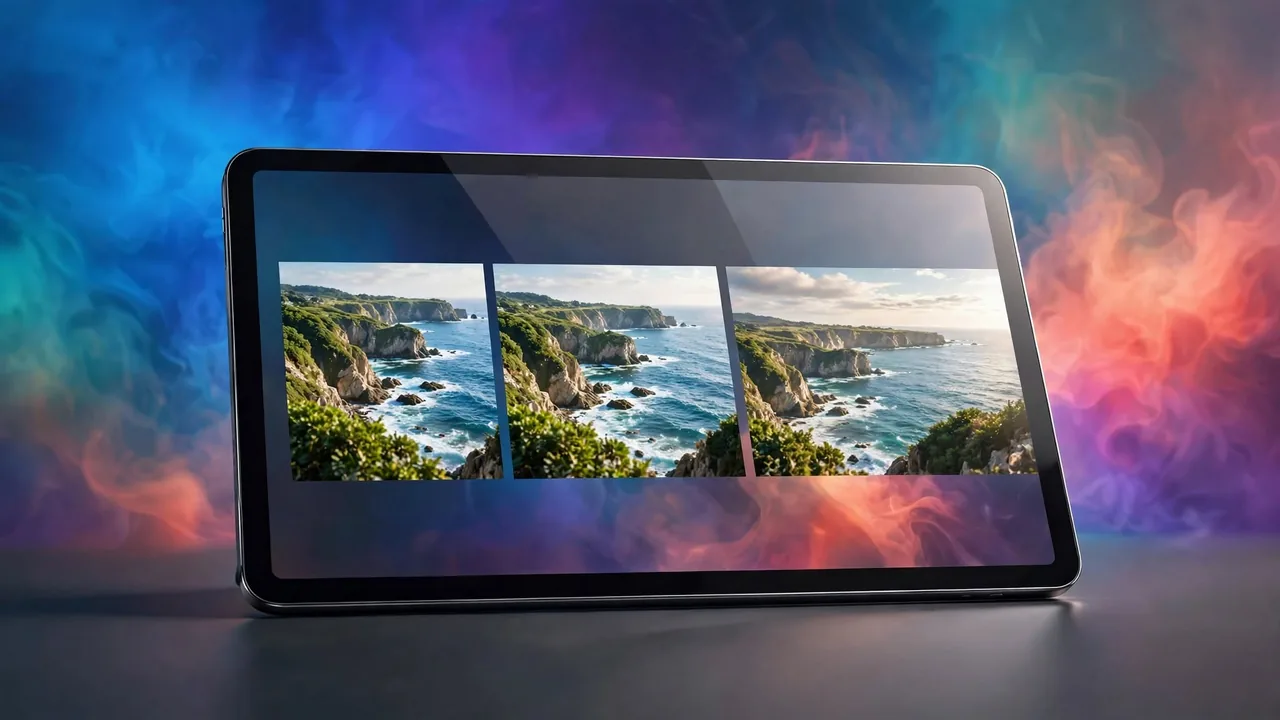
Crop any image to a fixed aspect ratio or a free selection, right in your browser. Your photo is processed on your device and never uploaded.
The clean crop-and-export workflow
For a polished result, work in this order: crop to the target aspect ratio, resize the cropped image to the exact pixel dimensions the platform wants with an image resizer, then compress the final file with an image compressor so it loads quickly. Doing crop before resize means the resize step only scales and never distorts, because the proportions already match the target.
Privacy is worth a mention because cropping so often involves personal photos, you might be cropping yourself out of a group shot, trimming a document, or preparing a private picture for an avatar. A browser-based cropper does everything on your own device, so the image and everything you cropped away never touch a server. You get precise, ratio-locked crops with none of the exposure that comes from uploading personal images to an unknown site.
Planning crops for multiple destinations
One image often has to appear in several places at once, a square thumbnail, a wide banner, a tall mobile version, and each wants a different aspect ratio. The mistake is to crop tightly for one destination and then have nothing left for the others. The professional approach is to shoot or keep the image with room to spare around the subject, so there is margin to crop in several directions without cutting into what matters. Photographers call this "leaving room for the crop," and it is why marketing images are often composed more loosely than they finally appear.
When you know the destinations in advance, crop from the largest original each time rather than cropping once and re-cropping the result, which throws away pixels at every step. Produce each aspect ratio as a separate export from the master. If a subject sits dead centre with tight framing, a square crop may work but a wide one will clip heads or feet; a subject placed with breathing space survives every ratio. Thinking about the crops you will need before you finalise the image saves the frustration of discovering that the perfect banner simply is not there in the pixels you kept.
Cropping, then, is both a technical fix and a creative decision. Match the aspect ratio to where the image will live, use the crop to improve the composition rather than just to change the shape, and always start from a large enough original that the pixels you keep are plenty for the job.